Help & FAQ
FAQ
Where is it hosted?
What can't I upload?
What can I host?
Who owns this?
Guide
[Uploading] [Your files] [Sharing a file] [Folders] [Sharing a folder] [Statistics] [Getting help] [Your account]
Uploading
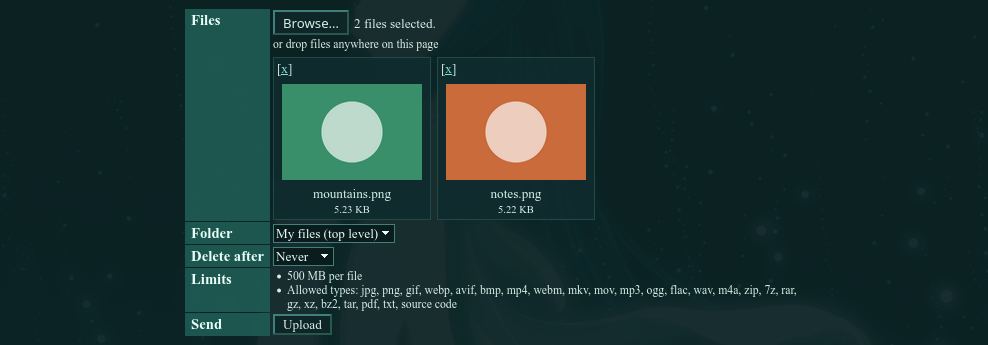
Go to Upload & files. Click Browse and pick one or more files, or just drag them onto the page.
Each file shows up with a small preview. Click [x] to take one back out. Pick a folder and how long to keep the files, then press Upload. You can keep using the page while it works.
Your files
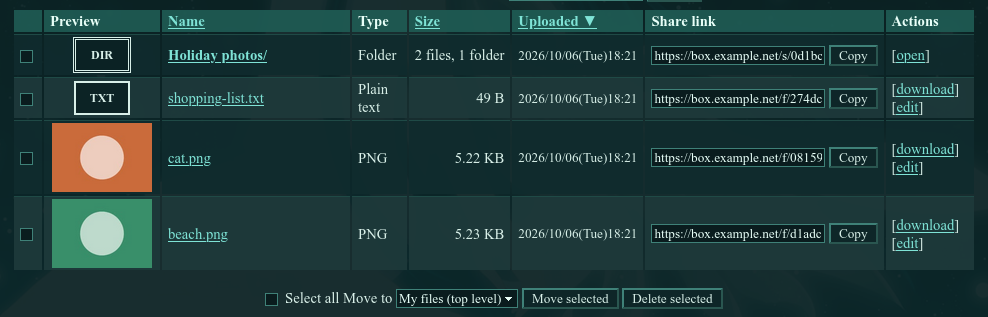
Your files are listed under the upload form. Index shows a list and Gallery shows thumbnails. Click a column name to sort by it.
Tick some files to move them into a folder or delete them.
Sharing a file
Every file has its own link. Press Copy next to it and send the link to anyone. They don't need an account.
Click edit on a file to rename it or to see how often its link was opened.
Folders
Type a name next to New folder and press Create. Click a folder to open it. The path at the top takes you back up.
To put files in a folder, upload them while you're in it, or tick them and use Move to. Folders can go inside other folders too.
Sharing a folder
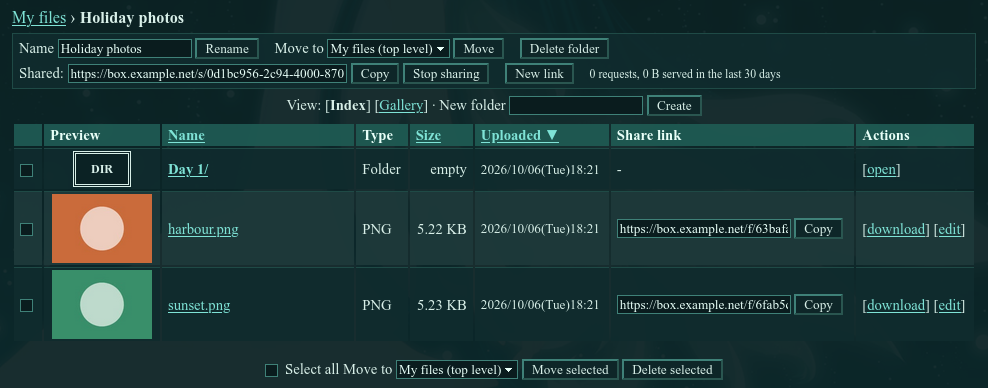
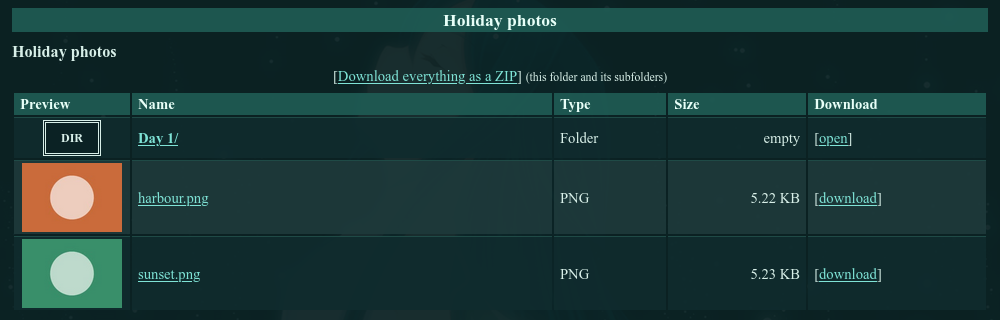
Open the folder and press Share. You get one link for the folder and everything in it. People with the link can open its subfolders, download single files, or get everything at once as a ZIP.
Stop sharing turns the link off. New link makes a fresh one, and the old link stops working.
Statistics
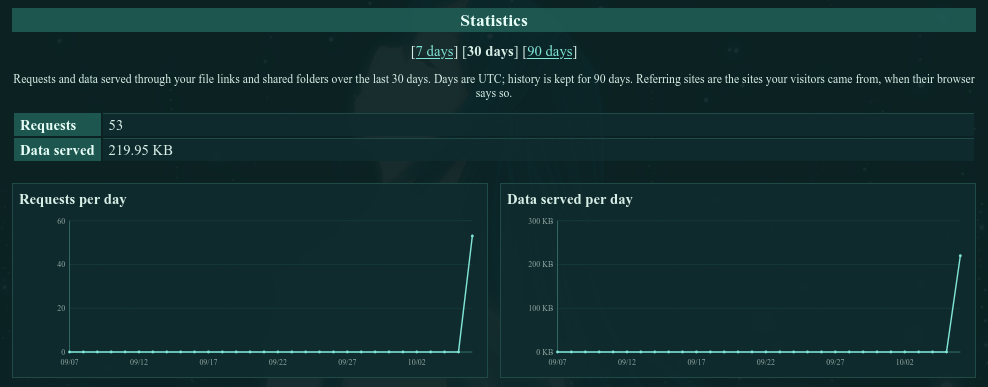
Statistics shows how many times your links were opened, how much was downloaded, and which sites people came from.
Getting help
To ask staff something, open a ticket under Support. Messages from staff show up under Notices.
To report a file that breaks the rules, use Report at the bottom of any page. You don't need an account for that.
Your account
Change your password or delete your account under Account. Deleting your account also deletes all your files, and it can't be undone.
